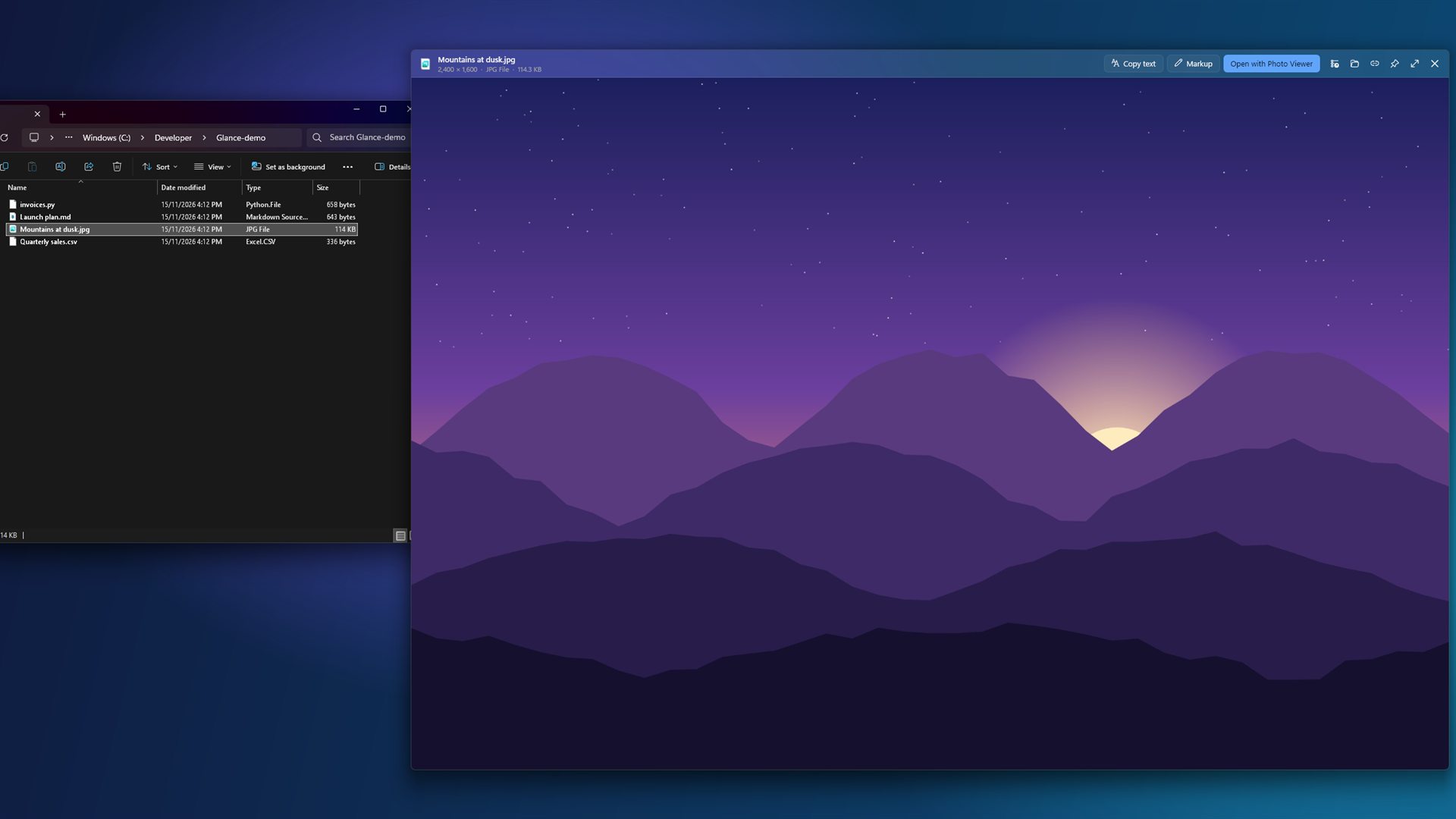
Why open an app just to check what's inside a file? Select it in File Explorer, press
Space, and Glance shows it straight away: a photo, a PDF, a spreadsheet, a page of notes,
a few lines of code. Press Space again and it's gone. It installs without admin rights and works offline,
so it suits a work laptop as well as your own PC.
Fig. 1 · A photo selected in File Explorer, previewed with one press of Space
Fig. 2 · In the preview
A quick look, then back to work
Glance opens over File Explorer without taking the keyboard away from it. Use the arrow
keys and the preview follows your selection, file by file.
01 · Most of what's in a folder
Photos, documents and the rest
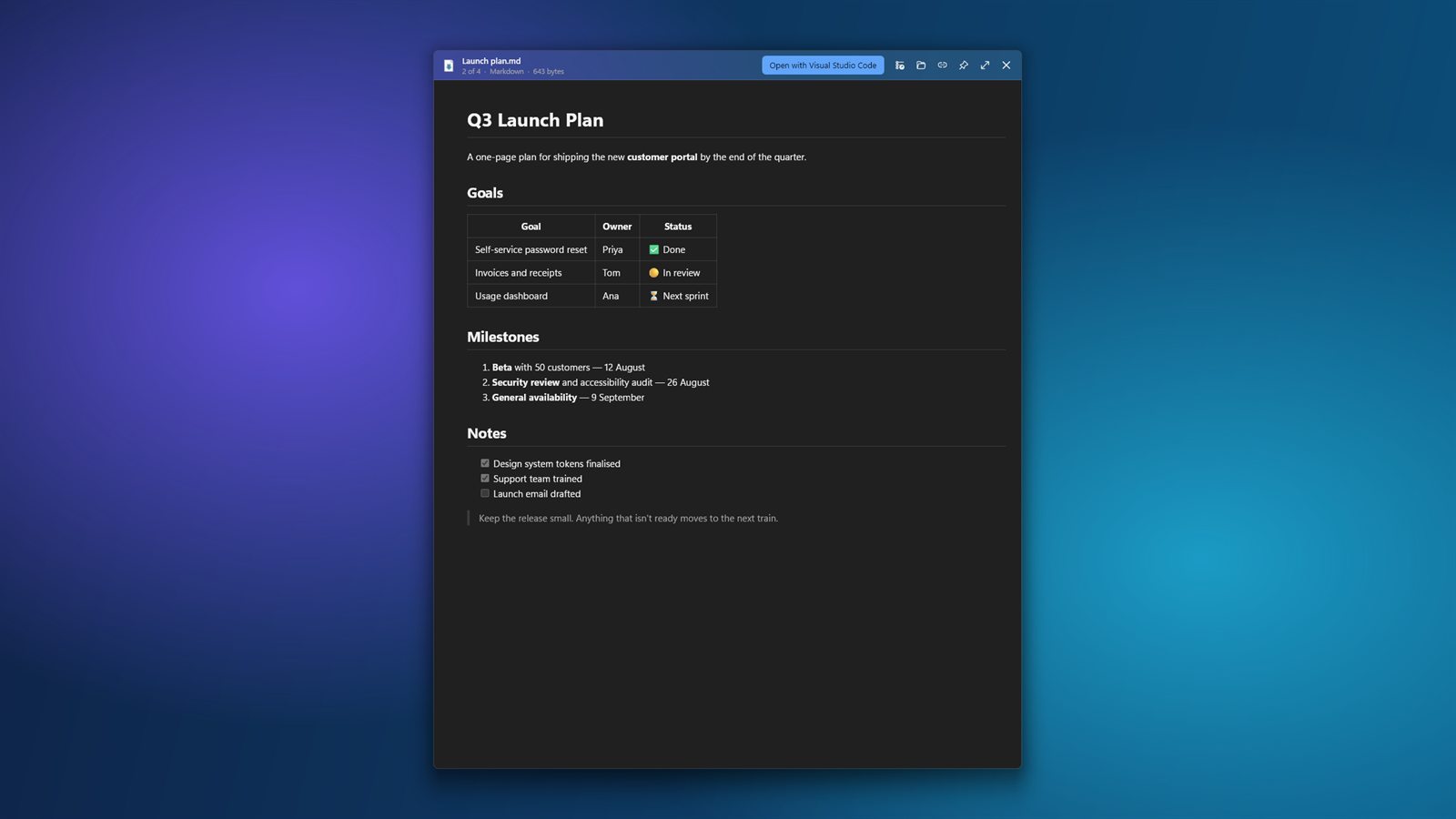
Photos and camera RAW, PDFs you can search, Word, Excel and PowerPoint files, Markdown, more than
a hundred kinds of code with syntax colours, CSV tables, video and audio, fonts, and what's inside a zip.
Anything else gets a large thumbnail and its details.
02 · Wherever you pick files
Explorer, the Desktop and dialogs
Space works in File Explorer, on the Desktop and in the Open and Save dialogs of other apps.
There's also a Preview with Glance item on the right-click menu. Select several files and the
arrows move through just those.
03 · Small jobs, done in place
Mark up a picture, copy its words
Draw, highlight, add an arrow or a note, crop or rotate, then save a copy next to the original.
Copy the text out of a screenshot or a scanned page with the recognition built into Windows, without
sending anything anywhere.
04 · Suits a work PC
No admin rights, nothing to configure
Glance installs for your account alone, like any Store app. It adds no driver, no service and no
shell extension, and it listens for Space only while File Explorer, the Desktop or a file dialog is in
front. IT teams can deploy it through Intune or winget.
Fig. 3 · A Markdown file, formatted with its tables and checklists
Space
Open the preview, and close it again
←→
Move to the previous or next file
Enter
Open the file in its usual app
F
Full screen
M
Mark up an image
Fig. 4 · Your files
Your files stay on your PC.
Glance has no account, no advertising and no usage telemetry, and there is no Company31 server for it to talk to.
Previews are drawn on your device. Documents and web pages are shown with the internet blocked, so opening a
preview never loads remote images or trackers.
Links inside a preview open in your browser only when you click them. Files stored in OneDrive or SharePoint that
aren't on your PC yet are fetched by Windows with your own account, the same as opening them in File Explorer.
Free · Windows 11, or Windows 10 version 2004 or later · 64-bit.
After installing, Glance starts with Windows and waits quietly in the notification area. Select a file and press Space.
Fig. 6 · Correspondence
A file that won't preview? Write
Glance is made by Manuel Re at Company31 in Sydney. A file type it doesn't handle yet, a place where Space
doesn't work, or an idea for a better preview is a useful place to start.
mre@c31.ai · Please describe the problem before sending a private file.